![logo.svg]](https://aide.qidigo.com/hubfs/Qidigo_April2019%20/Images/logo.svg)
Video:
Steps:
Add your logo
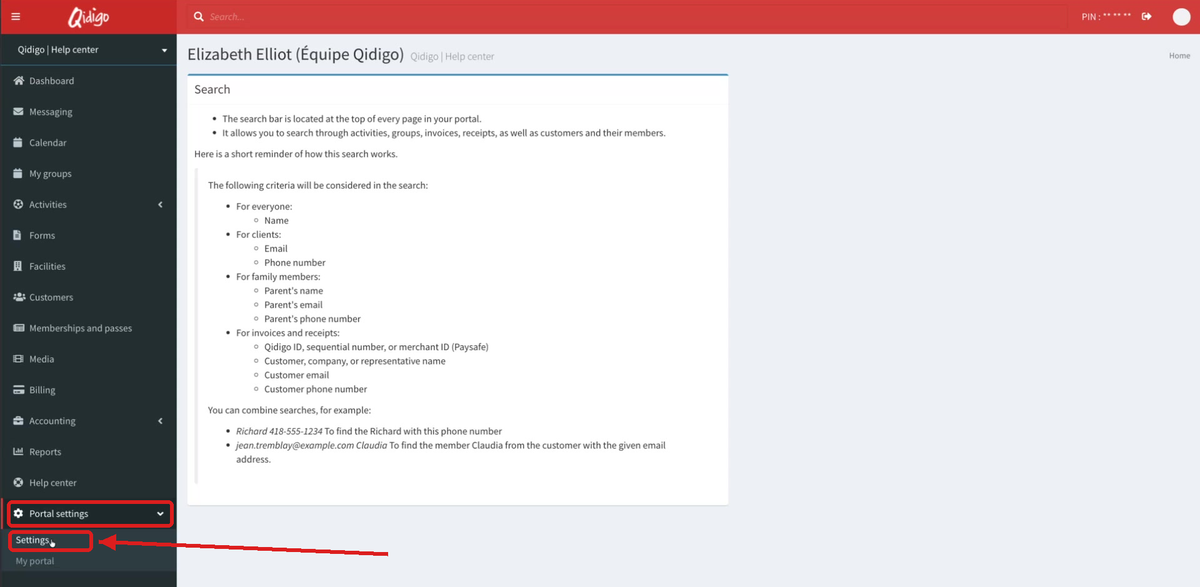
1. Open your portal settings
In your admin portal, click Portal settings in the left-hand menu, then Settings.
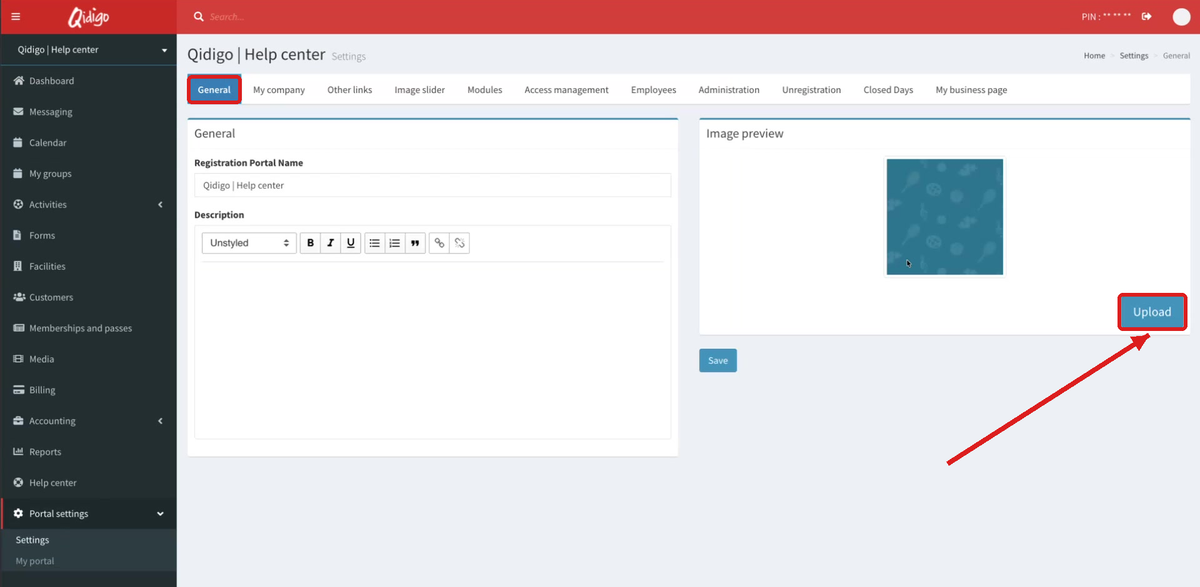
2. Click Upload in the General tab
In the General tab, the Image preview section shows your current logo. Click Upload.
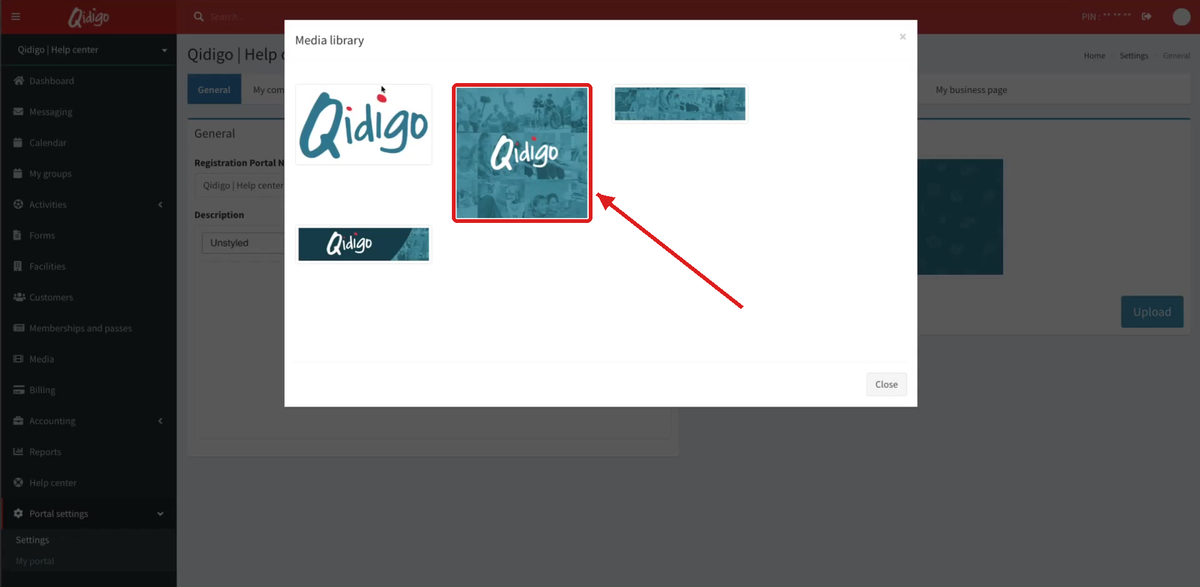
3. Select your logo in the Media library
The Media library window opens. Click the image you want to use as your logo.
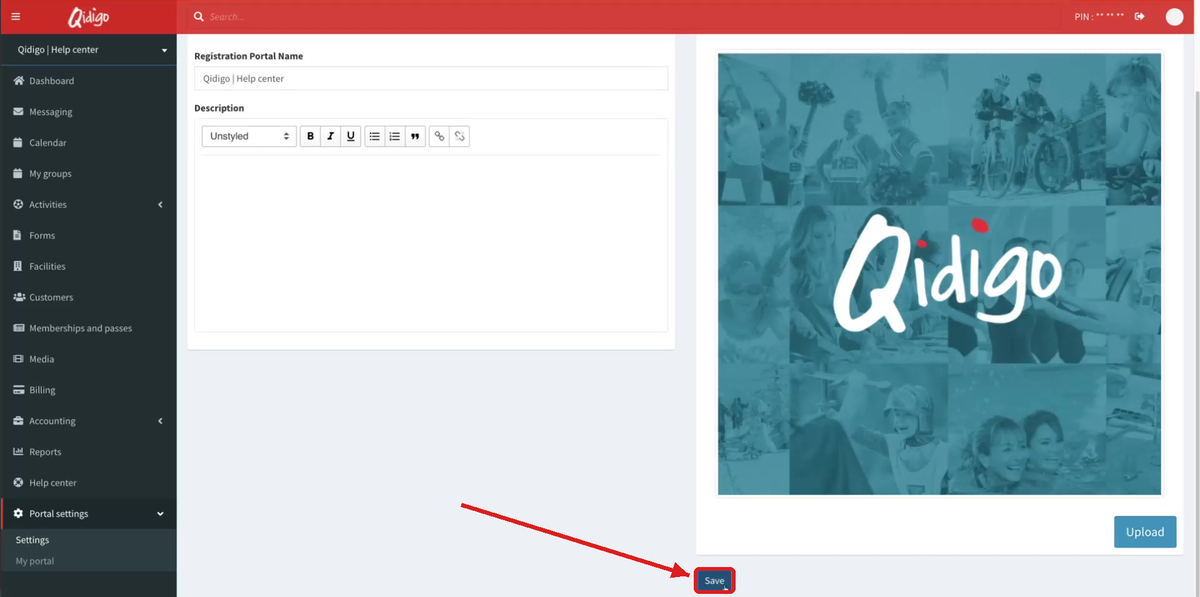
4. Save
The selected image appears in the preview. Click Save.
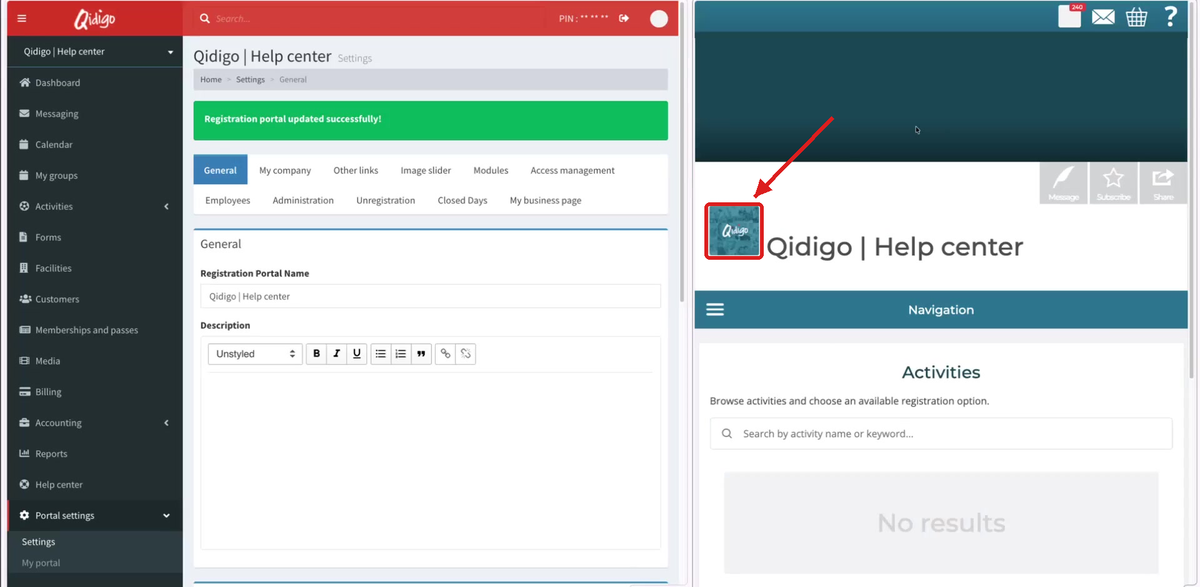
5. Check your registration portal
The message “Registration portal updated successfully!” confirms the change. Refresh your registration portal: your new logo appears in the square next to your portal name.
Add images to the slider.
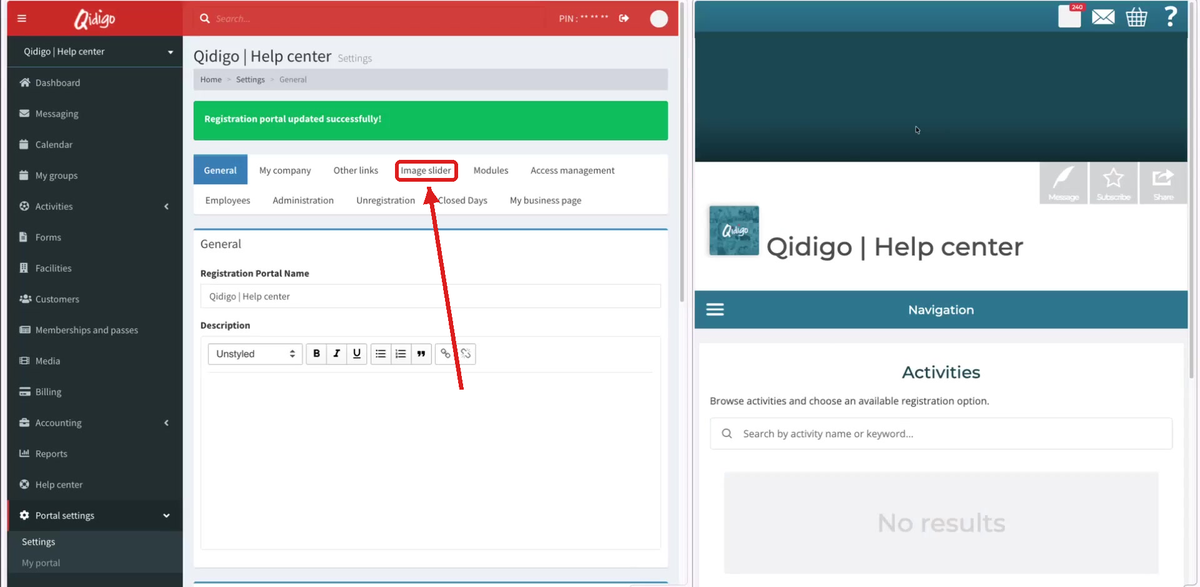
6. Open the Image slider tab
Still in Portal settings > Settings, click the Image slider tab.
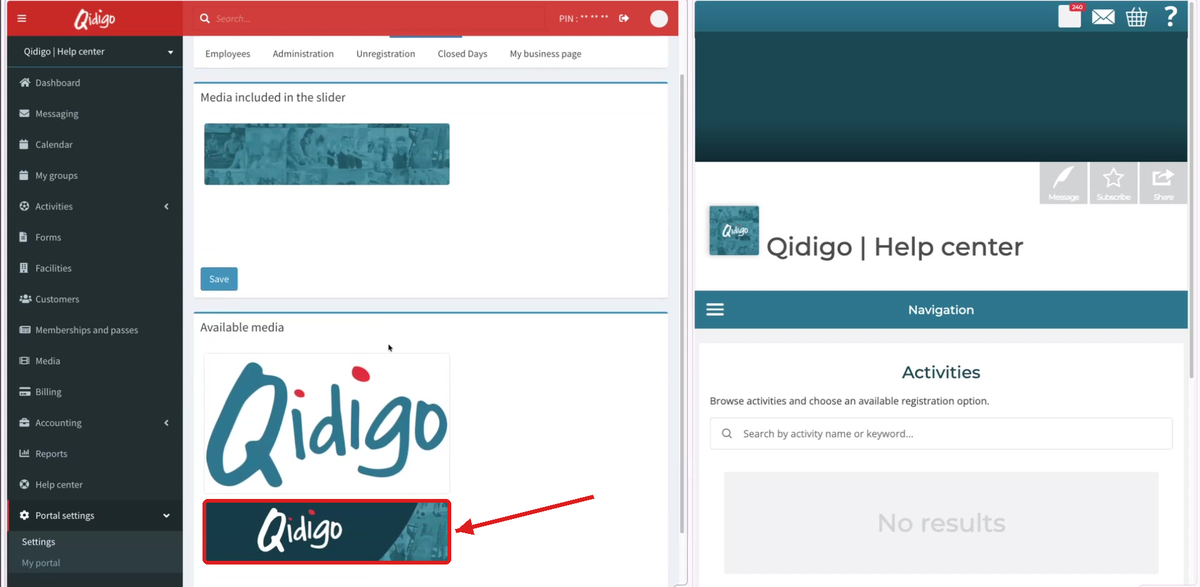
7. Click the images to add
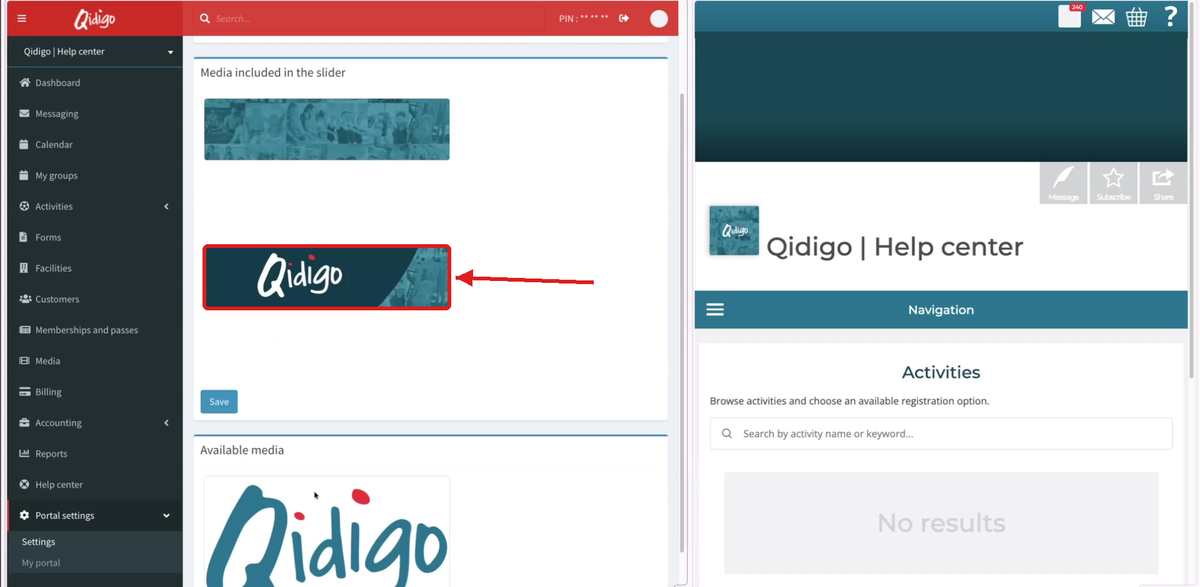
The page has two sections: Media included in the slider (top) and Available media (bottom). Click an image under Available media to add it to the slider. You can add several images.
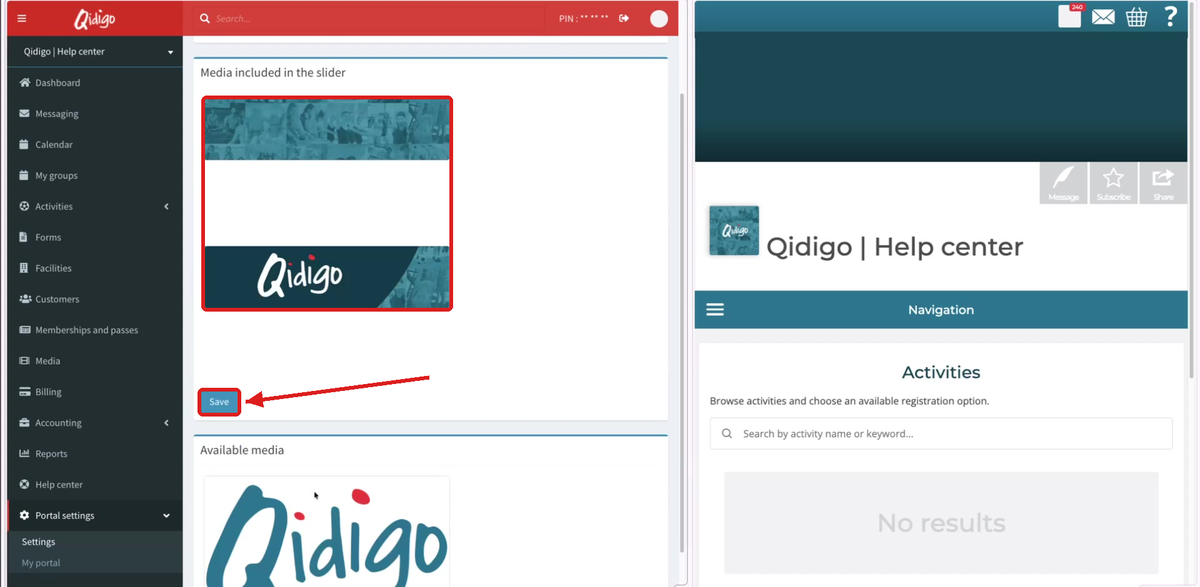
8. Save
The added images now appear under Media included in the slider. Click Save.
9. Check your registration portal
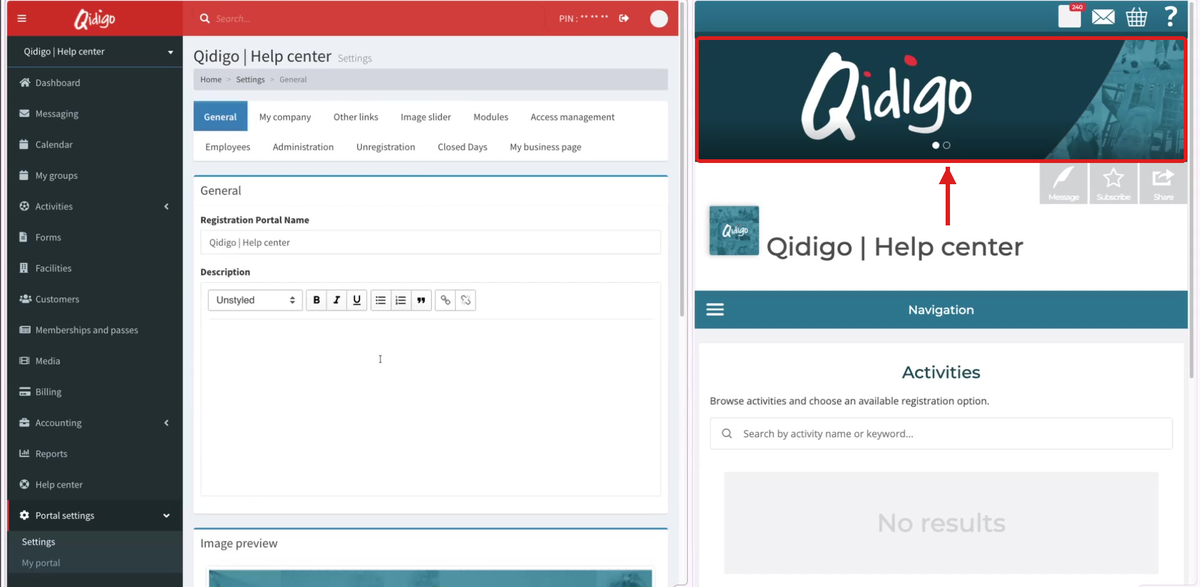
Refresh your registration portal: the images rotate automatically in the banner at the top of the page.
Remove an image from the slider
10. Click the image to remove, then save
In the Image slider tab, click the image to remove under Media included in the slider. It returns to Available media. Click Save.
ℹ️ Note: removing an image from the slider does not delete it from your Media library. You can add it back at any time.
Common use cases
- Set up your portal with your organization's branding when you start using Qidigo.
- Update your logo after a rebranding.
- Feature a new program, a registration period, or a seasonal event in the banner.
- Remove outdated banners at the end of a season.
Conclusion
Your logo and banner images are managed in Portal settings > Settings: pick them from your Media library, click Save, and the changes appear on your registration portal right away.