![logo.svg]](https://aide.qidigo.com/hubfs/Qidigo_April2019%20/Images/logo.svg)
Video :
Steps
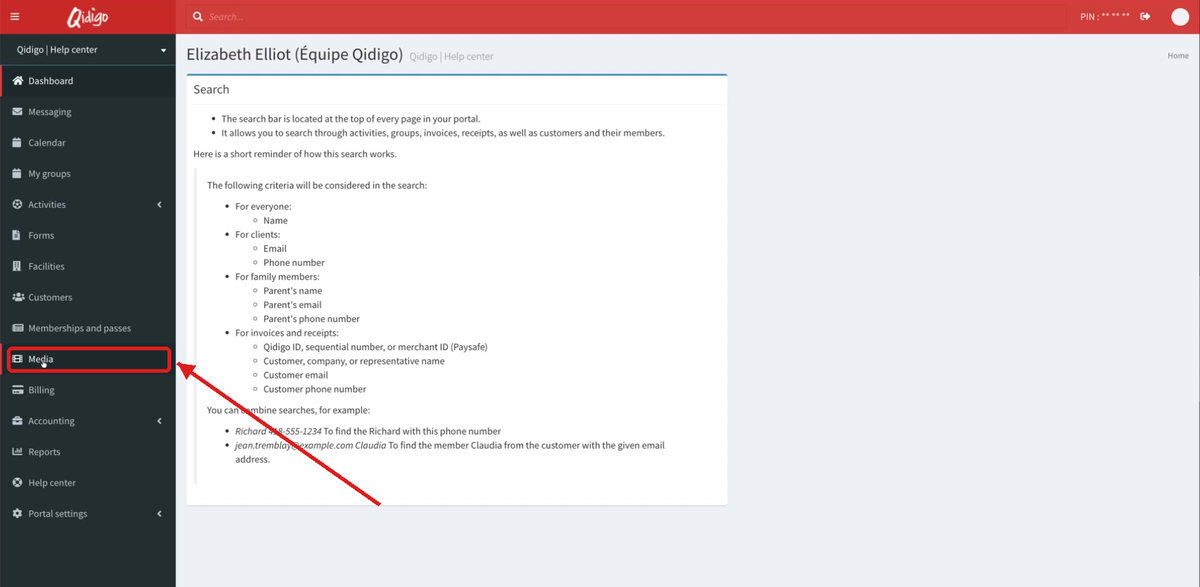
1. Open the Media section
In your admin portal, click Media in the left-hand menu.
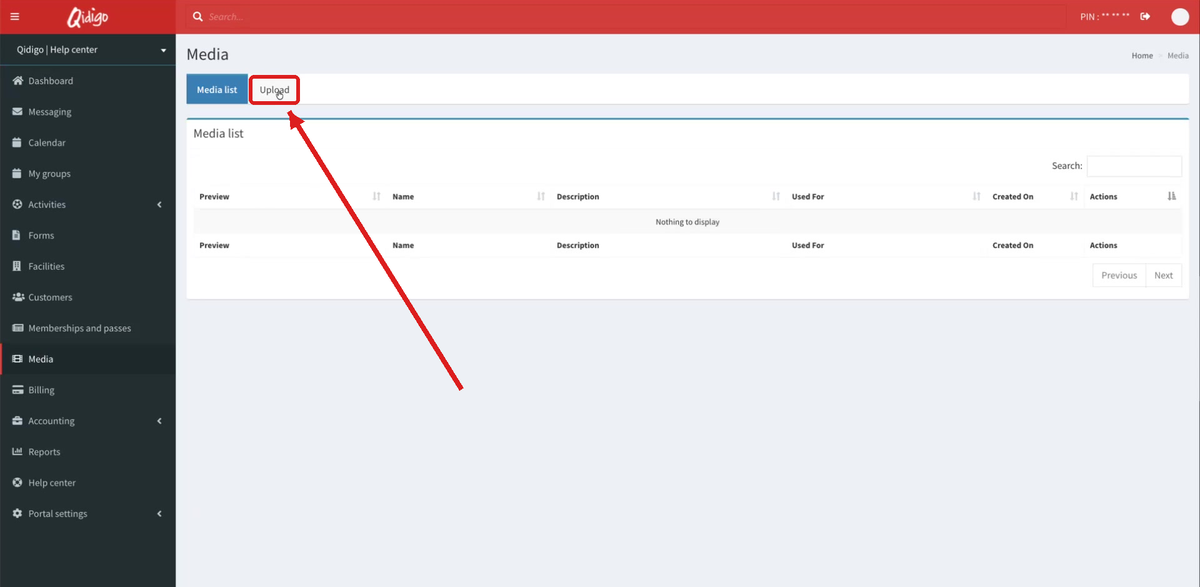
2. Open the Upload tab
The page opens on the Media list. Click the Upload tab.
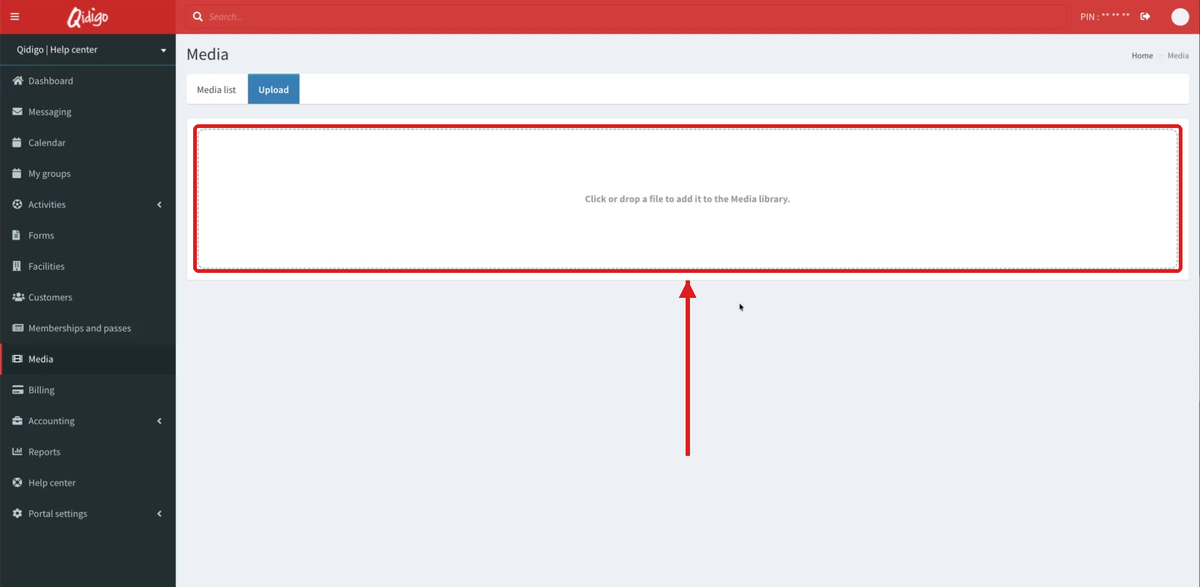
3. Drop your image
Drag and drop your image into the dotted rectangle, or click inside it to select a file from your computer.
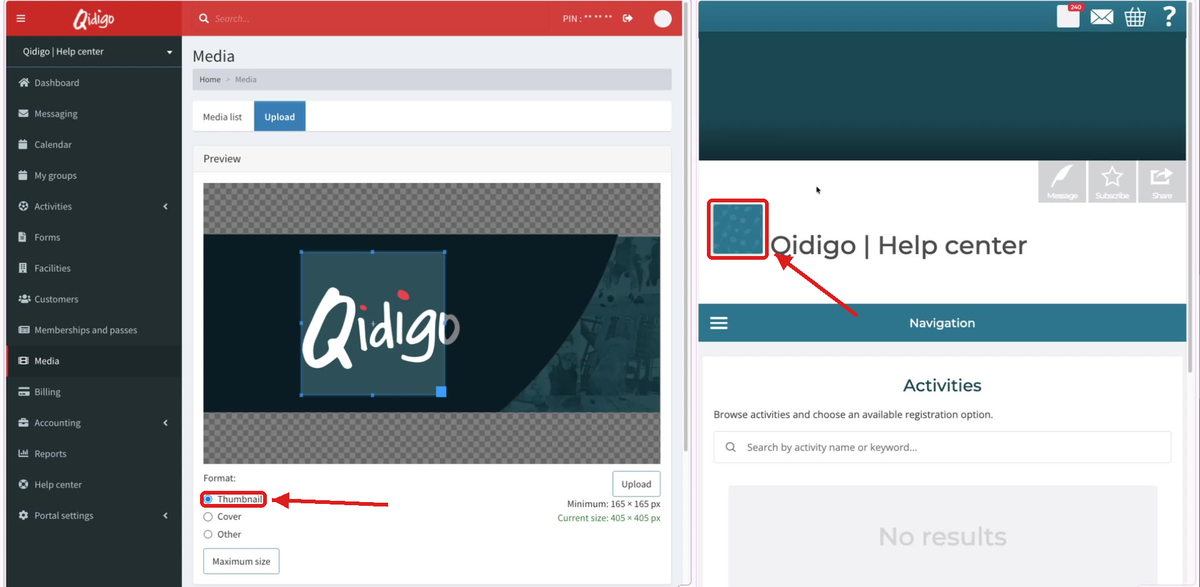
4. Select the format
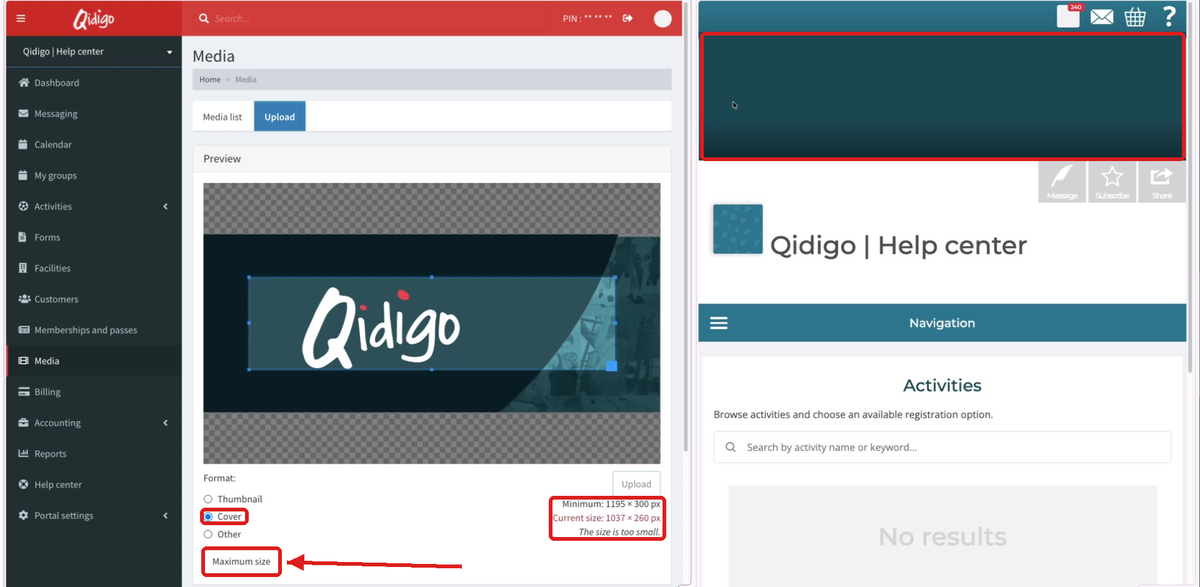
Once the image is dropped, a preview appears. Under Format, choose how the image will be used:
Thumbnail: the small square logo displayed next to your organization's name on your registration portal (minimum 165 × 165 px).
Cover: the rectangular banner displayed at the top of your registration portal; you can add several cover images (minimum 1195 × 300 px).
5. Click Maximum size
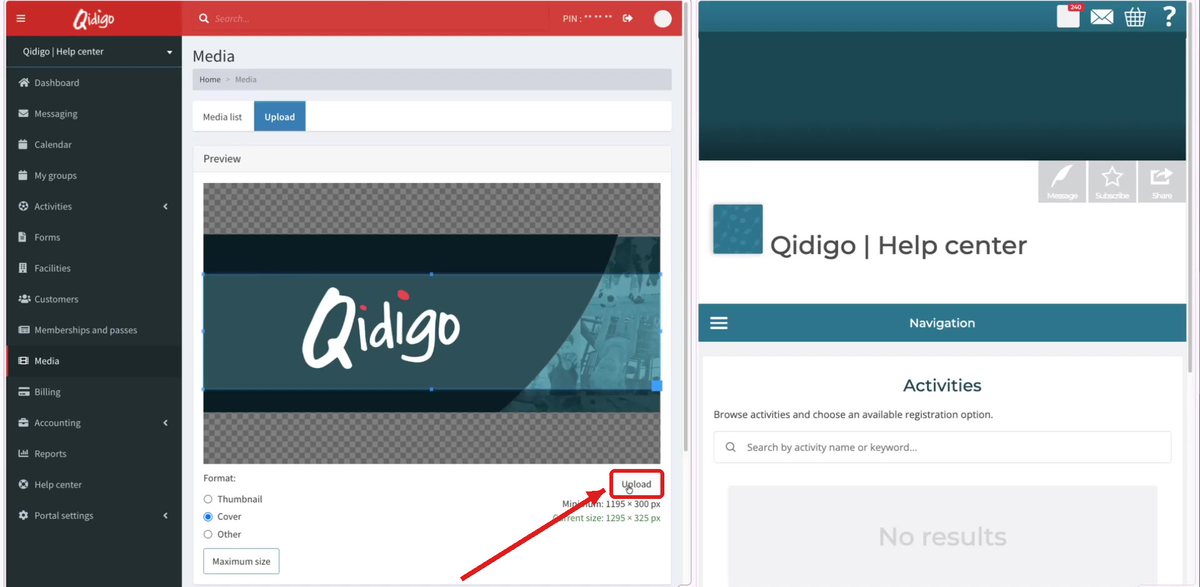
Click Maximum size: the platform automatically sets the crop area to the largest possible size for the selected format. Make sure the Current size is displayed in green, below the required minimum.
⚠️ Warning: if the current size is below the minimum, the message “The size is too small.” appears in red and the Upload button stays disabled. Click Maximum size or use a higher-resolution image.
6. Upload
Click Upload.
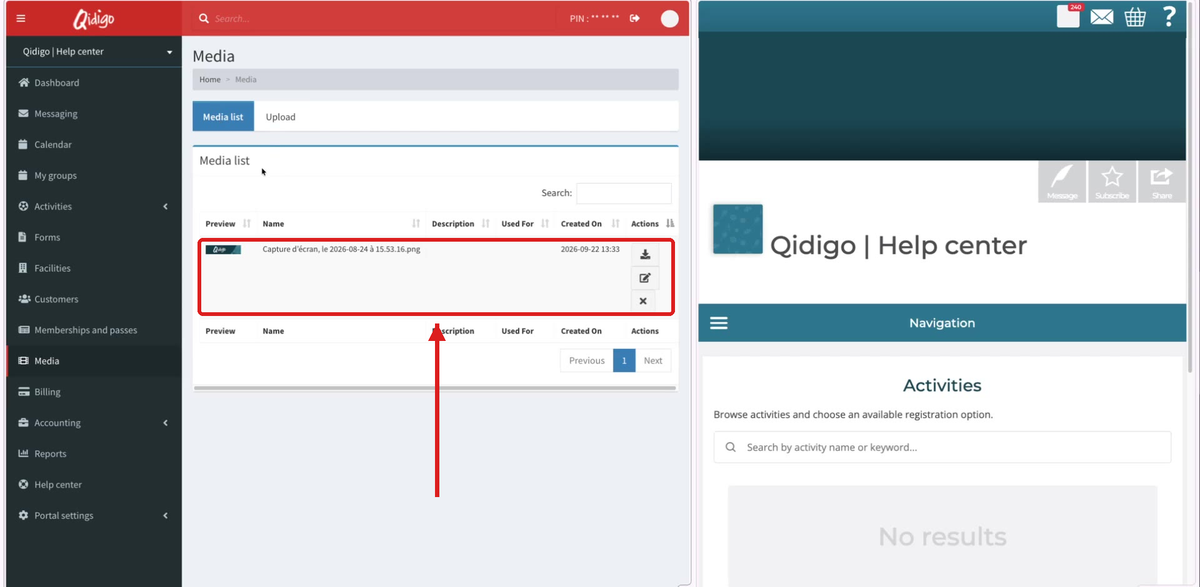
7. Find your image in the Media list
All your uploaded images appear in the Media list tab. The icons in the Actions column let you download, edit or delete each image.
At a glance: Thumbnail or Cover?
| Criteria | Thumbnail | Cover |
|---|---|---|
| Where it appears | Small square next to your organization's name | Banner at the top of your registration portal |
| Shape | Square | Rectangular (panoramic) |
| Minimum size | 165 × 165 px | 1195 × 300 px |
| Number of images | One (logo) | Several possible |
Common use cases
- Add or replace your organization's logo (Thumbnail format).
- Prepare the banners for your registration portal (Cover format).
- Build an image library before creating your activities, so you can link the images to them afterwards.
ℹ️ Note: once uploaded, your images can be linked to your activities (see How to create an activity?).
Conclusion
Choose the right format, click Maximum size, then Upload: your images are ready to be used on your portal and in your activities.